Quick and Easy Setup
One script for Edgenuity, EdgeX, Edmentum, Subject, Brightspace (TRECA Digital Academy), and Florida Virtual School (FLVS). Compatibility can vary. Follow the steps below to install.
Choose your device
Choose your installation method
Install a Userscript Manager
Tampermonkey
Most popular userscript manager
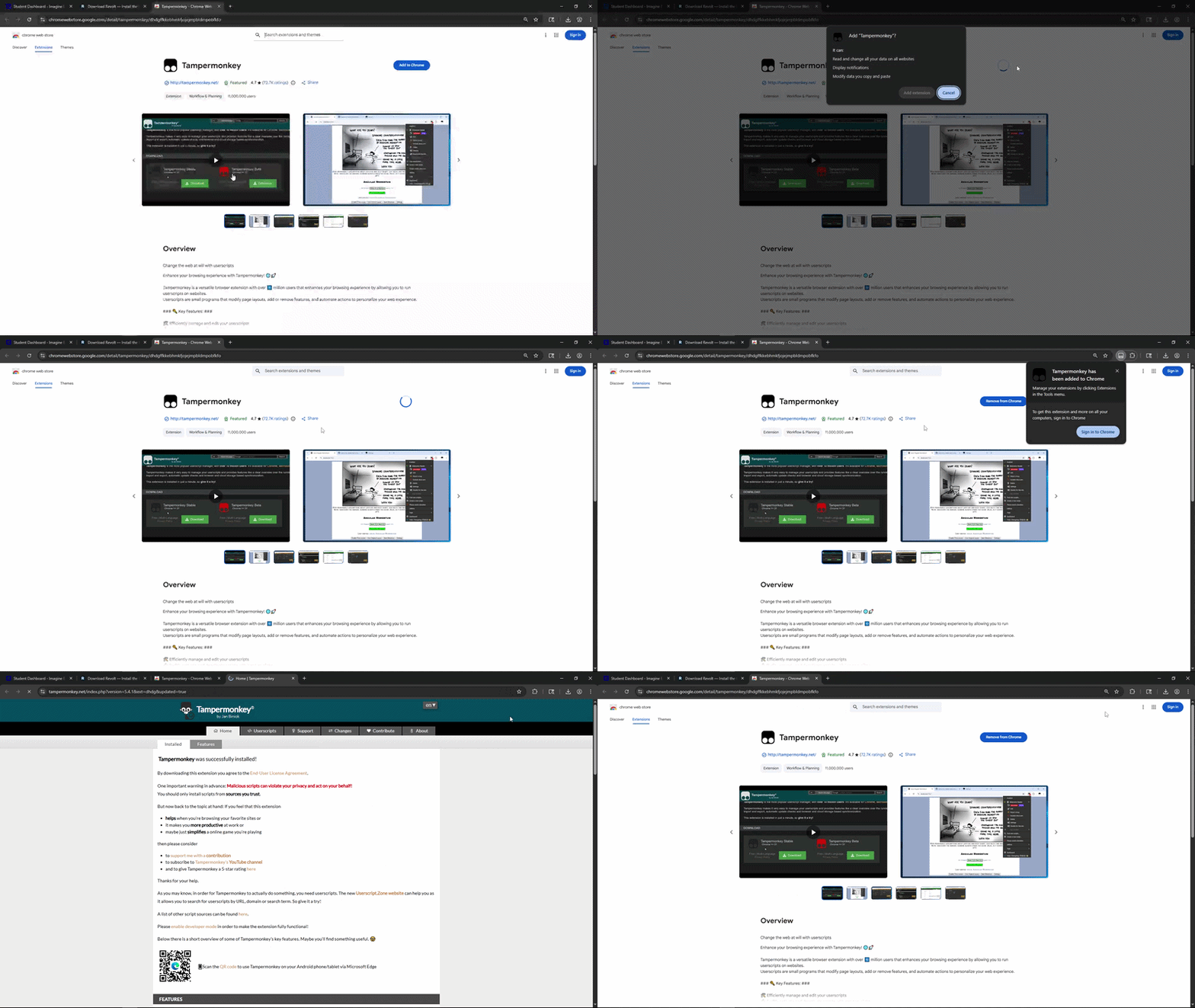
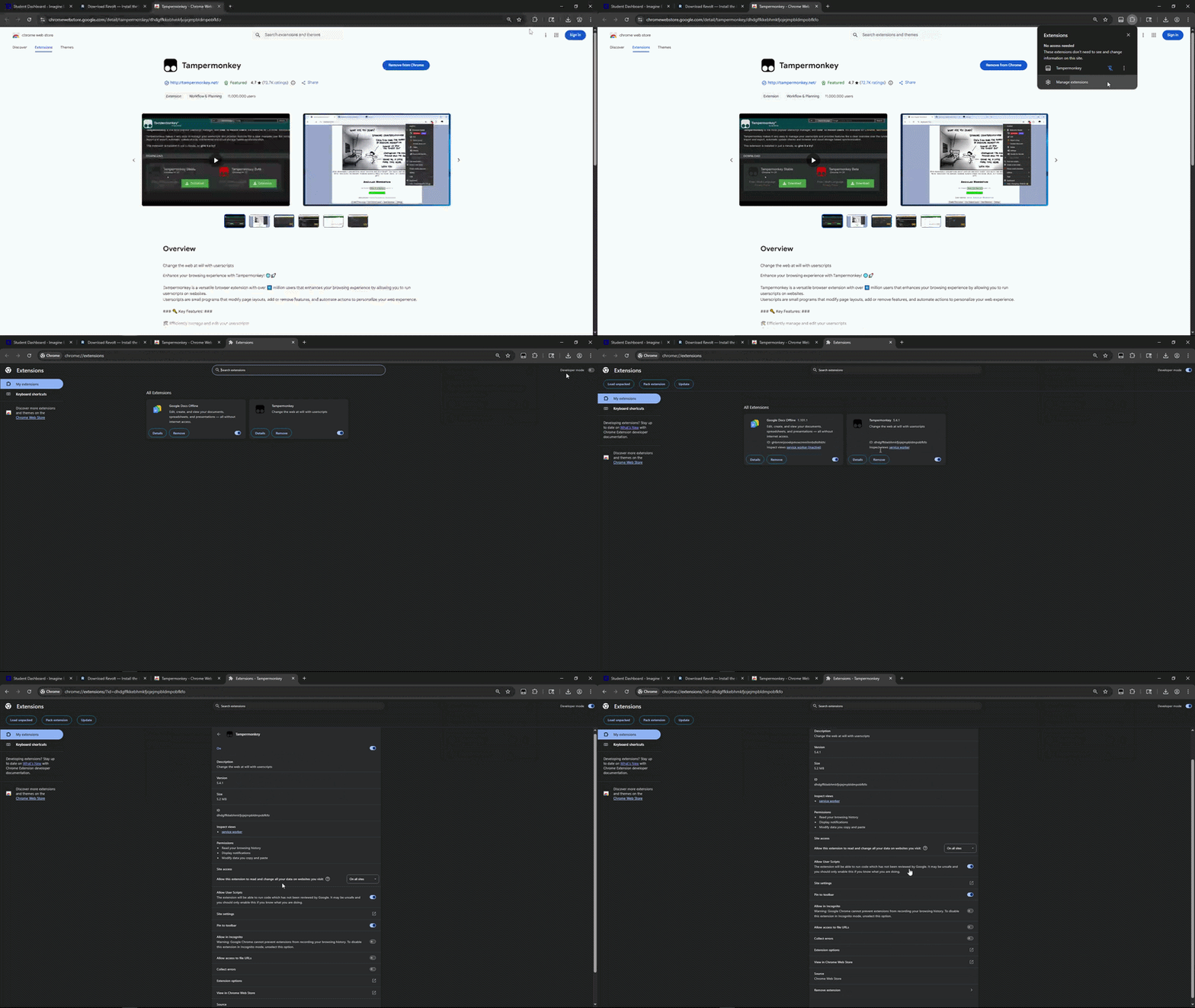
Enable Developer Mode & Userscripts
Tampermonkey requires Developer Mode and userscripts to be enabled. Select your browser below:
- Go to
chrome://extensions/ - Toggle Developer mode in the top-right corner
- Click the Tampermonkey extension icon in your toolbar
- Select "Enable userscripts" if prompted
Download & Install the Script
Revolt Userscript
One script for every supported platform. Click the button below to download; Tampermonkey will automatically open and prompt you to install.
Installation Steps
- 1Click the Download Script button above
- 2Tampermonkey will open a new tab showing the script details
- 3Click the Install button in Tampermonkey
- 4The script is now installed and will run automatically on every supported platform
Start Using Revolt
You're All Set!
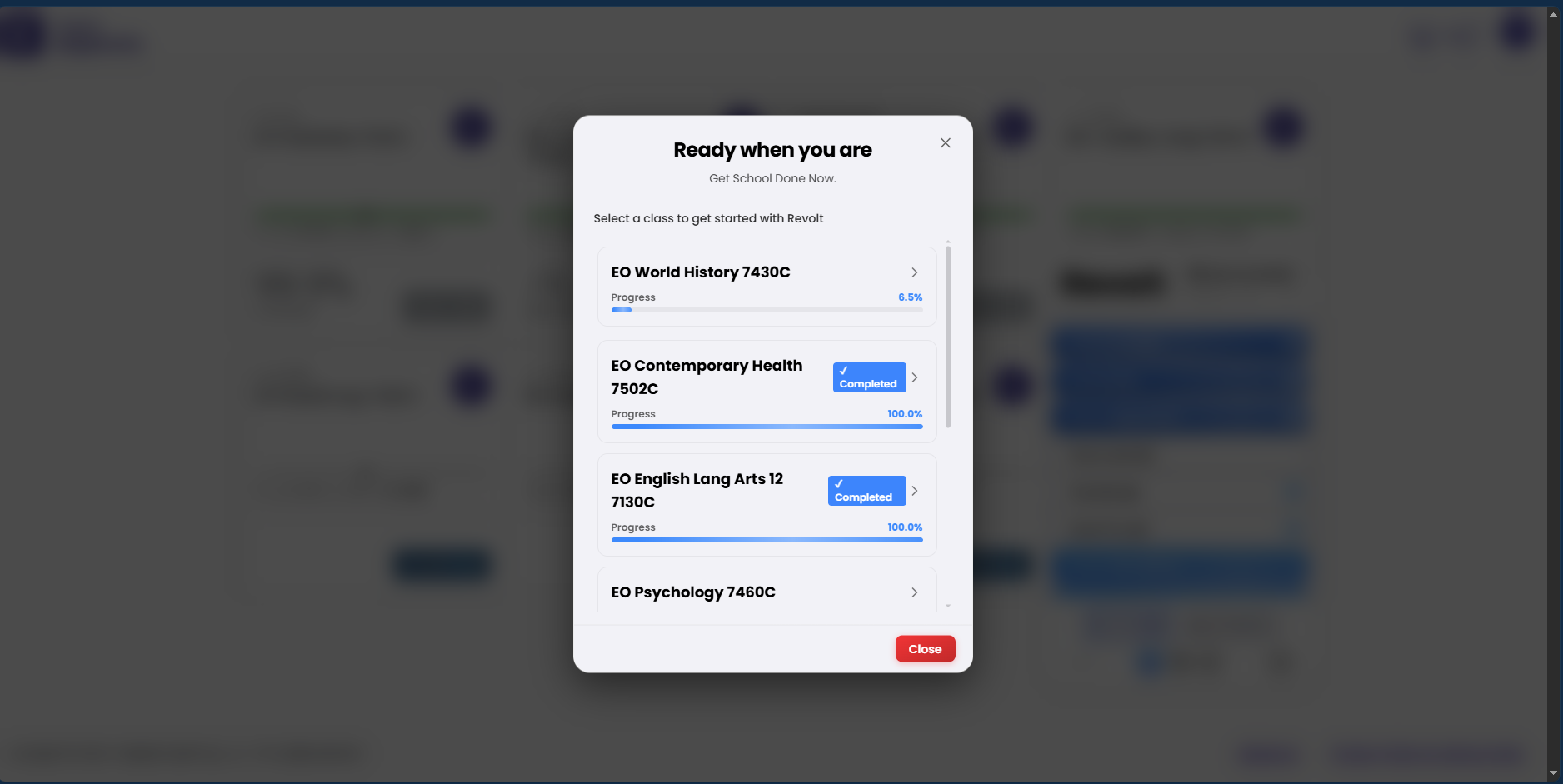
Go to Edgenuity, EdgeX, Edmentum, Subject, Brightspace, or FLVS and log into your account. Revolt will automatically activate and you’ll see the Revolt panel appear on the page.
- Auto-advance through activities
- Auto-answer quizzes and assignments
- Skip intros and instructions
- And much more...
- A modern browser (Chrome, Firefox, Edge, or Brave)
- Tampermonkey installed
- Developer Mode enabled (Chrome/Edge only)
- An active Revolt license key or subscription
Ready to get started?
Works across supported browsers and platforms. Compatibility can vary. Get your license and start automating today.
1 / 4
Install Manager